
1. Install, review, test, invite
BepInEx must already be installed. The server and every player need the same ModGate version, including its plugin and preloader. Players install this connector once before it can show a download prompt.
- Stop the server normally and back up its configs and mod folders.
- Download the ModGate install ZIP. Extract it into the server installation, merging its
BepInExfolder. On a managed host, use its file manager or supported upload workflow. - Start once to generate ModGate’s server files. Stop again, review the detected mod list, and choose your client rules.
- Restart, let background lookup finish, and inspect its report. Test a join from a separate client before inviting everyone.
BepInEx/plugins/ValheimModGate/ValheimModGate.dll
BepInEx/patchers/ValheimModGate/ValheimModGate.Preloader.dll
The preloader belongs in patchers, not plugins. Mod managers may use their own package subfolders; keep both components in the correct BepInEx branches. ModGate does not install or update BepInEx.
Give players the server mod download guide: review requirements, download supported selections together, install and restart, then rejoin. Valheim does not reconnect automatically.
2. Find the server files
These files live under BepInEx/config/ModGate/. Edit the active list while the server is stopped, or use the authenticated in-game server editor described below.
| File or folder | What it is for |
|---|---|
server-mods.json | Your active requirements, classifications, download mappings, and policies. |
server-only.txt | Extra server-only discovery exclusions: one GUID or exact mod name per line; # starts a comment. |
server-id.txt | The server’s identity. Preserve it during upgrades so existing profiles recognize the server. |
manifests/ | Per-plugin manifest folders for DLLs without their own package folder. |
lookup-report.json | Lookup results and reasons a download mapping could not be resolved. |
server-update-report.json | Startup update results, including skipped packages. |
admin-access.key | The private owner-issued code for remote administration. |
The older server-mods.discovered.json is unused. Generated dependency metadata in plugin-dependencies.json is maintained separately; it is not a second list of mods to configure.
3. Review the detected mod list
Start with your generated server-mods.json. Confirm serverName and review each item in mods. ModGate reads installed DLL metadata for the plugin’s guid, name, and required version. It refreshes detected information while retaining owner classifications, download links, and update choices.
Plugin versions and package versions can differ. A package named ExampleAuthor-ExampleMod-1.2.3 could contain a DLL reporting 1.2.4. The package identifies the download; the DLL version controls the requirement. Do not change the required DLL version simply to match a manifest or README.
For a manually supplied mod that is absent from the server, use its real GUID, plugin version, and mapping with automatic: false. This keeps the manual row when discovery cannot find it. It does not freeze metadata for a DLL that is detected; text locks are explained in section 7.
EDIT YOUR REAL ENTRIES
The snippets below show individual settings or entries. Merge the relevant fields into your generated file. Do not replace your complete mod list with an example. Keep JSON quotes, commas, and brackets valid; use the included example file as a reference.
4. Choose who needs each mod
side | Player requirement | Server behavior |
|---|---|---|
required | Must have an accepted version. | Use for mods needed on both server and clients. |
optional | May choose whether to include it. | Does not make the mod’s own hard dependencies optional. |
serverOnly | Never offered for player download. | Runs on the server. |
clientOnly | Must have an accepted version. | Its ordinary plugin is suppressed on a dedicated server. |
Newly discovered names containing “Server Side” or “Serverside,” ignoring case and punctuation, default to server-only. Additional exclusions can go in server-only.txt. Existing classifications are preserved: change an existing entry’s side directly. Names alone cannot reliably classify every mod.
Keep client-only DLLs available for server discovery and eligible updates, or create a manual entry if the DLL is absent. Suppression covers normal plugins, not preloader patchers or code loaded by another mod. Listen hosts retain their client plugins. A package containing both client-needed and server-only plugins cannot be offered to players; resolve that package’s classification conflict.
This illustrative object belongs inside mods. Every identity and package below is a placeholder; replace them with the actual mod’s information.
{
  "guid": "example.client.interface",
  "name": "Example client interface — replace me",
  "version": "1.0.0",
  "side": "clientOnly",
  "package": "ExampleAuthor-ClientInterface-1.0.0",
  "downloadUrl": "",
  "nexusUrl": "",
  "automatic": false,
  "autoUpdate": null,
  "allowNewerVersion": null
}
5. Resolve download mappings
ModGate performs background lookup after startup. Allow it to finish, then reconnect your test client for current requirements. lookup-report.json contains lookup attempts, not the full inventory: already mapped, server-only, or Nexus entries may not appear.
- Thunderstore or Hexium: use an exact supported
packagemapping, or a version-specific supported HTTPS download link indownloadUrl. Use the package containing the expected DLL, and keep a supplied package and URL consistent. - Nexus: put the author’s Valheim mod download page in
nexusUrland leavedownloadUrlempty. Players open that page and install manually. ModGate does not download Nexus files automatically. - Unresolved: verify the source, package identity, and DLL version. An arbitrary website URL or a server filesystem path is not an automatic download mapping.
ModGate does not send arbitrary mod files directly from your server to players. Suggested dependencies are choices unless you explicitly classify them as required or client-only. A missing hard dependency can still stop BepInEx loading a plugin.
6. Add manifests for loose DLLs
If a mod sits directly in BepInEx/plugins, ModGate creates a per-plugin folder under:
BepInEx/config/ModGate/manifests/<plugin-guid>/manifest.json- Start once so the folder exists, then stop the server.
- Read the generated folder’s README to identify the DLL and real plugin GUID. Unusual GUIDs may use a
guid-<hash>folder. - Copy that mod’s original
manifest.jsoninto its matching folder. - Restart, wait for lookup, and check its report.
Use a separate matching manifest for each unrelated plugin. An existing valid package manifest takes priority. The manifest provides source and dependency hints; installed DLL metadata remains authoritative for plugin identity and version.
7. Set client and version rules
These are top-level settings, alongside serverName and mods. All four shown here default to false:
{
  "allowExtraClientMods": false,
  "allowNewerClientVersions": false,
  "autoUpdateOnRestart": false,
  "autoUpdateAllMods": false
}
Set allowExtraClientMods to true to permit additional client-side mods outside your list. Leave it false to restrict players to the listed setup. Required-version rules and server-only exclusions still apply.
allowNewerClientVersions: true accepts newer installed client versions. Each entry’s allowNewerVersion can be true or false to override that default, or null to inherit it. ModGate itself always requires its exact matching version. Accepting a version does not guarantee another mod’s compatibility.
Protect a text field with *. For example, "name": "*My chosen display name" preserves that text during refresh; runtime processing removes the marker. It is not a version wildcard and does not belong in Boolean settings. Locking a version or package also makes the startup updater skip that package.
8. Choose startup updates
Automatic server updates are off by default. They run at dedicated-server startup, not continuously while players are connected.
- Enable the master setting
autoUpdateOnRestart: true. - For selected mods, keep
autoUpdateAllMods: falseand set those entries’autoUpdate: true. For all eligible mods, setautoUpdateAllMods: true. - Use an individual
autoUpdate: falseto exclude a mod, ornullto inherit the global choice. - Restart and read
server-update-report.json. Test the updated server before reopening it to players.
Updates need supported Thunderstore/Hexium mappings, working HTTPS access, and the system curl helper. BepInEx, ModGate, loader/preloader packages, and manual Nexus entries are excluded.
Each package needs its own plugins subfolder. A loose DLL’s added manifest helps lookup but does not satisfy that update-folder requirement. Shared folders, mismatched recorded DLL versions, locked version/package fields, and inconsistent pins can cause skips. If one package contains several plugins, their update choices must agree. The report explains the reason; do not assume “No updates applied” means everything is current.
9. Give administrators access
Remote administration requires both the player’s normal server admin-list membership and the owner-issued access code. Use your host’s standard admin-list workflow; ModGate does not replace it.
- The owner retrieves the generated code from
BepInEx/config/ModGate/admin-access.key. - Share it privately with trusted administrators, not in public instructions or screenshots. This is separate from the server join password.
- The administrator joins the server, presses Shift + F6, and chooses Server configs.
- Enter the code and choose Connect / refresh server files.
The client keeps this code only until disconnect. If access is denied, check both the admin-list identity and the code for this server, then reconnect if needed. A local listen-host owner uses local owner access.
10. Edit server configs in game
Use Server configs for eligible server mod .cfg files and ModGate’s server-policy JSON. The profile’s ordinary Configs tab edits local profile settings instead.
- Connect and refresh the file list. Click a file to expand its editor directly below its button.
- Edit supported values, or edit the ModGate server JSON. Respect any field locks and displayed validation errors.
- Choose Save server changes and wait for confirmation. Saved changes are queued on the server for its next restart. A backup is created when those edits are applied.
- Arrange a normal server restart, then verify the effective settings and test a join.
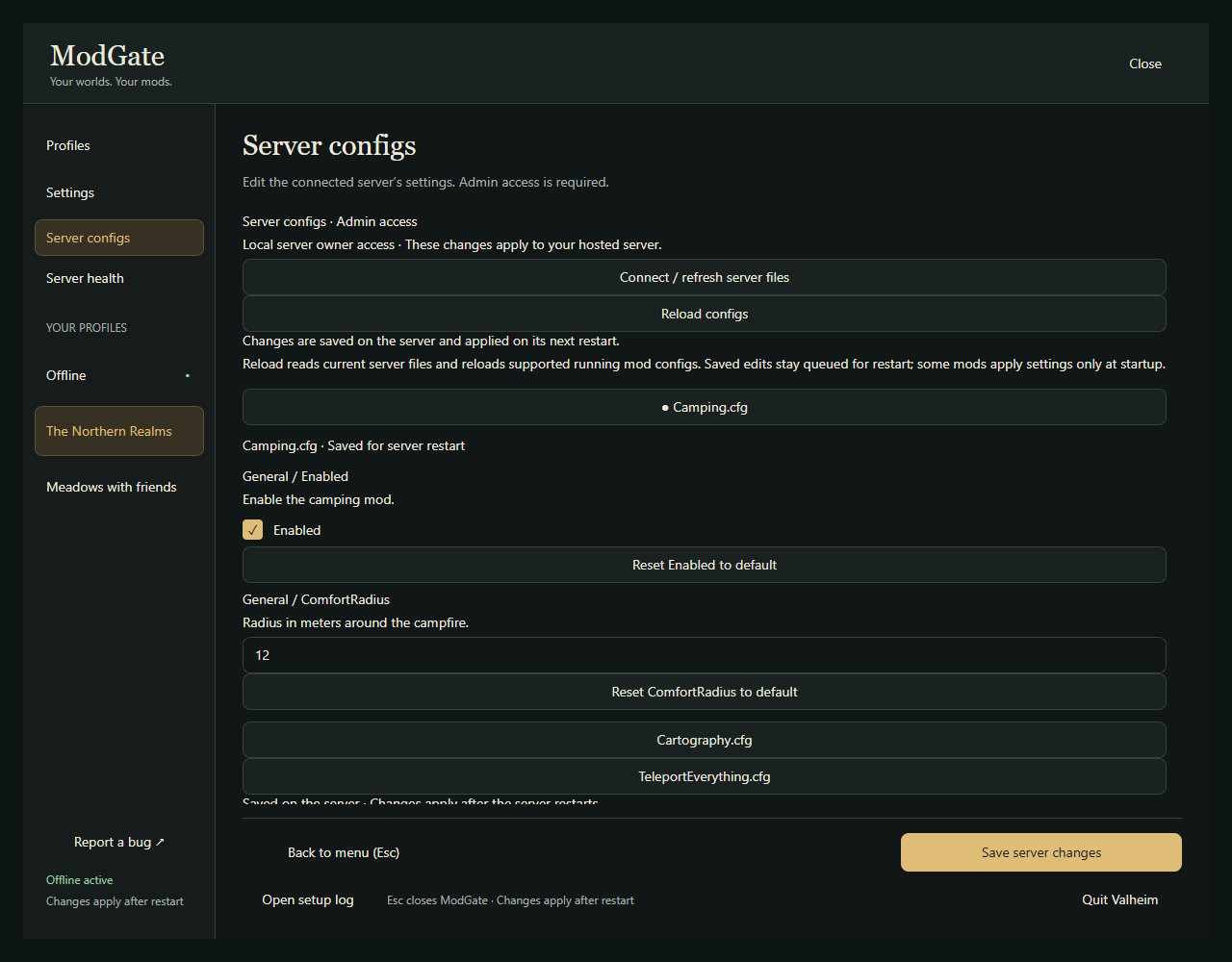
Reload configs is different from applying saved edits. It reads current files already on disk and reloads supported running mod configs. Queued edits remain queued; ModGate’s server-policy JSON requires a restart. Individual mods decide whether reloaded settings can take effect live.
If a request times out or you cancel waiting, refresh the file list before submitting again: the server may already have saved it. If a file changed elsewhere, reload its latest contents before retrying. Files that are too large, unsupported, or excluded from the remote editor must be edited through the host.
Queued edits are stored under BepInEx/ModGate/server-config-edits/pending/. Applied server-editor backups are under BepInEx/ModGate/config-backups/server-editor-…/. These paths are relative to the server’s Valheim installation.
11. Read server health
Choose Server health while connected, using the same administrator access. Select Refresh server health for a sample, or Start auto refresh for samples every two seconds while the view is open.
- CPU and memory: server-process CPU, resident memory, and managed memory. CPU 100% means one logical core; managed memory is part of process memory, so do not add it to resident memory.
- Connection: request round trip and its change between responses. These include processing time; local same-process requests do not have meaningful network latency.
- Responsiveness: recent update intervals and observed update cadence, not a guaranteed simulation TPS reading.
- Session: players, uptime, server traffic rates, and outgoing queue. Unsupported values are unavailable. GPU usage, VRAM, and temperatures are not collected.
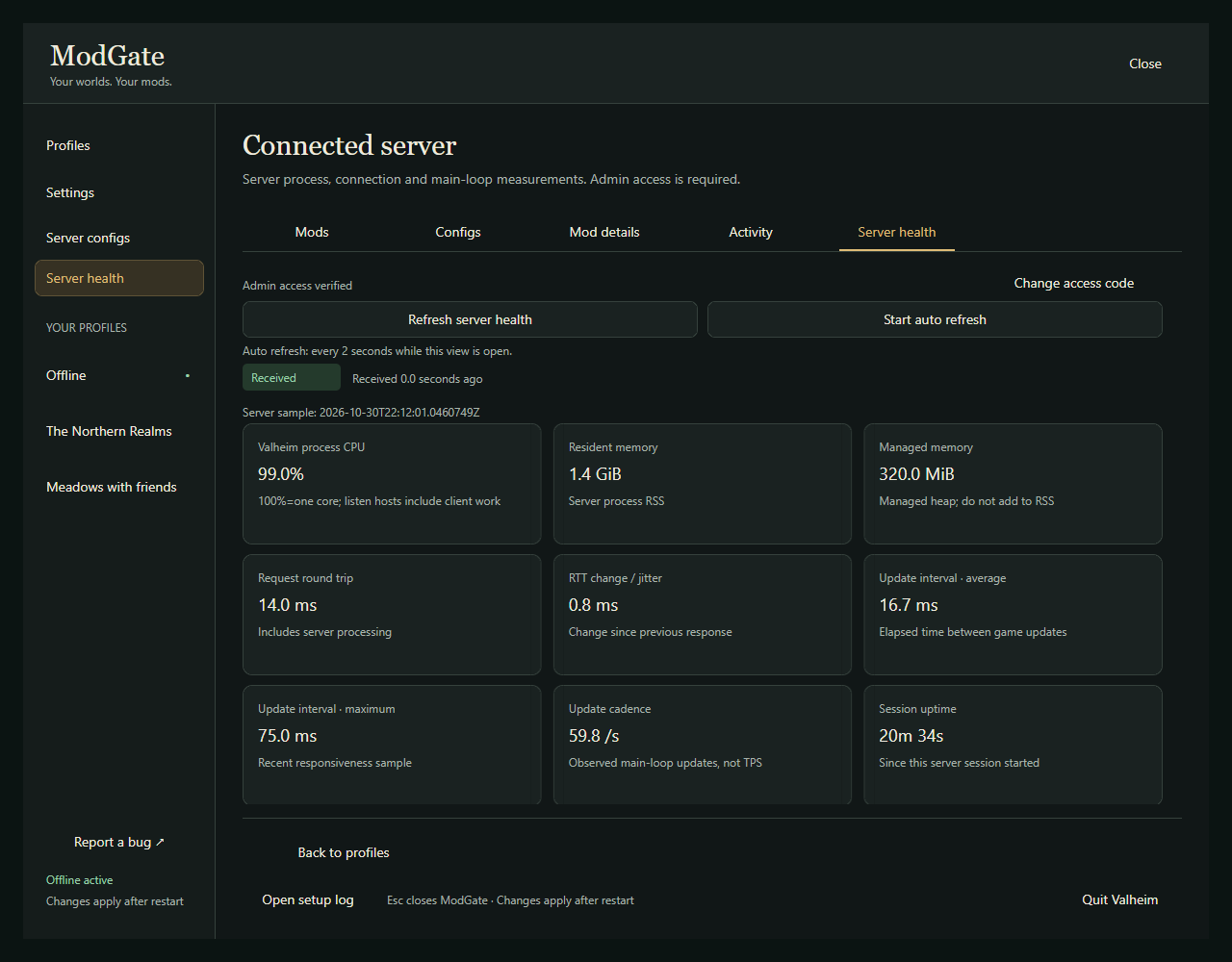
CPU may need a second sample. Check the sample age: a stale reading describes earlier conditions. Listen-host CPU includes client work, so interpret it differently from a dedicated server.
12. Maintain and troubleshoot
| What you see | What to check next |
|---|---|
| A mod needs classification. | Edit its existing side, restart, and reconnect the test client. |
| No verified download is available. | Wait for lookup, inspect lookup-report.json, then correct the package, URL, or matching manifest. |
| The package installs but the version still differs. | Compare the loaded DLL’s GUID/version with the requirement. Package and DLL versions may differ. |
| Startup updates are skipped. | Read server-update-report.json; check master/per-mod settings, package folders, locks, and HTTPS/curl availability. |
| Admin access is denied. | Check server admin-list membership and this server’s owner-issued code. A join password alone is insufficient. |
| Saved settings have not changed the running server. | Check for queued edits and restart. Reload does not commit them. |
| A player still cannot join. | Compare server and player BepInEx logs with the player’s Activity/setup log; confirm the same ModGate version and both DLLs. |
Keep backups of the server’s mod folders and configs before upgrades or update-policy changes. Preserve server-id.txt, existing configs, and profiles. Upgrade both ModGate DLLs on the server and every client together. Test the next join before announcing the upgrade.
Override and continue anyway can prepare available client files, but cannot make a missing dependency load or force your server to accept an incompatible setup. An unavailable pinned package’s substitute cannot bypass the required DLL version.
Server logs are normally at BepInEx/LogOutput.log; a managed host may also expose a console log. On the player’s computer, preparation details are in BepInEx/ModGate/logs/profile-setup.txt, and installer failures may leave BepInEx/ModGate/install-error.txt. Include ModGate’s version, the exact failure, relevant lookup/update entries, and the player’s setup log when reporting a bug. Review support reports before sharing them. Creating a support ZIP does not send it automatically; keep passwords and admin-access.key private.
HELP YOUR PLAYERS →
Keep each server’s setup in its own profile.Four server profiles and Offline, with separate mods and applicable configs.
