Before you start
A modded Valheim server can require specific plugins and versions. ModGate asks the server for its requirements, compares them with your installed mods, and offers the changes needed for a saved server profile.
Install BepInEx and ModGate once on your computer. The server needs them too, and its ModGate version must match yours. A game without the connector cannot display ModGate’s setup prompt.
- Close Valheim normally. If needed, install BepInEx for Valheim first. ModGate does not install or update it.
- Download ModGate and follow the installation steps. Extract its install ZIP into your Valheim installation, merging the BepInEx folder. Both the plugin and preloader must stay in their supplied locations.
- Launch the same Valheim installation or external mod-manager profile you normally use.
BepInEx/plugins/ValheimModGate/ValheimModGate.dll
BepInEx/patchers/ValheimModGate/ValheimModGate.Preloader.dll
1. Join and check the server’s list
Connect to your server as usual. If your setup already matches, the connection can continue. If it differs, ModGate shows the mods that need attention.
- Green: an installed version is accepted by the server. This can include a newer version when the owner allows it.
- Red: a required mod is missing.
- Yellow: a version change is needed, or an optional mod is absent.
Required mods are selected for you. Choose any optional mods and suggested dependencies you want to include. Mods marked server-only are excluded from your download choices.
2. Download and review
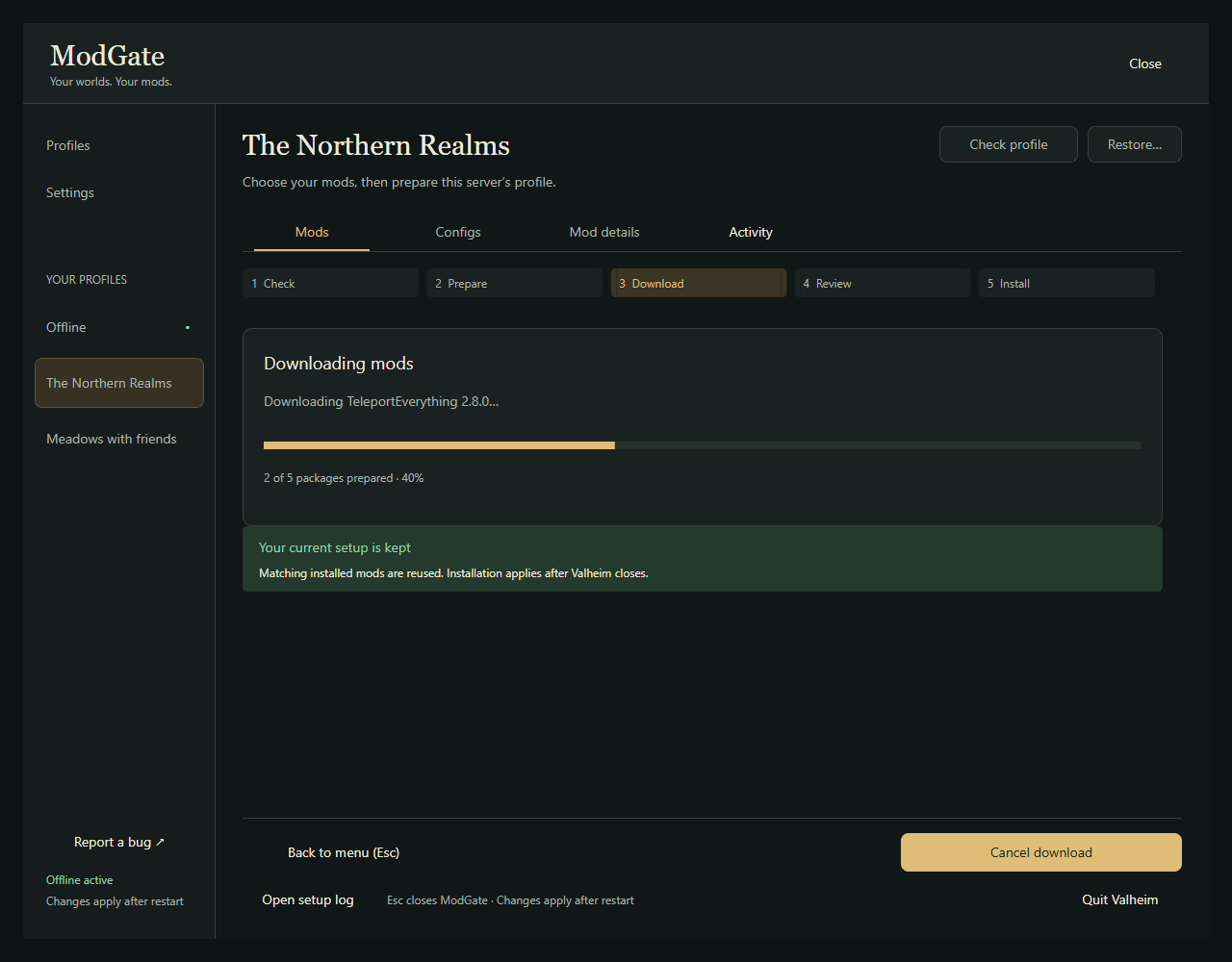
Choose Download and review to get the selected supported packages together. ModGate looks up the packages, reuses matching installed mods, downloads what is needed, and prepares the profile for you.
You do not need to find each supported required mod separately or import a collection. Review the proposed changes before installation, including any version replacements.
SUPPORTED DOWNLOADS
Automatic setup uses supported Thunderstore and Hexium packages. A Nexus entry opens a server-provided page for manual installation. Missing download mappings may need the server owner’s attention.
3. Install, restart, and rejoin
Once you have reviewed the prepared profile, choose Install and restart. The preloader applies the profile before other plugins load.
Automatic relaunch is supported on Windows. Other launchers or platforms can use installation on the next launch and restart manually. After Valheim relaunches, join the server again yourself. ModGate does not reconnect automatically.
Your server setup is saved as a profile. On later visits, ModGate can reuse that setup and check it against the server’s current requirements. If the owner changes the mod list, another preparation may be needed.
If the setup stops
Open Activity or Open setup log to see the package and the reason setup stopped. Retry after resolving the problem. For a Nexus download, install the file according to the author’s instructions, restart, and try joining again.
Override and continue anyway can prepare the available files when you choose to proceed. It cannot make an incomplete setup compatible: a missing hard dependency can prevent a mod from loading, and the server may still refuse the connection.
Only accept downloads from servers you trust. Staging, file integrity checks, and recovery tools help with setup, but mods run code on your computer. For help, use Report a bug or visit the ModGate support Discord.
What server owners need to do
Install BepInEx and the same ModGate version as your players. Start the server once, then stop it and review BepInEx/config/ModGate/server-mods.json. Confirm which mods are required, optional, server-only, or client-only, and fix any unresolved download mappings.
Restart, allow the background lookup to finish, and check lookup-report.json. Test a join from a separate client before inviting everyone. ModGate maintains the detected list and does most of the player setup; your review keeps the server’s choices accurate.
You can choose whether to accept newer client versions, allow extra client-side mods, and enable eligible startup updates. Server auto-update is off by default. See the full server-owner guide for these settings.
NEXT GUIDE →
Keep different servers in separate profiles.Save four server setups and an Offline profile, each with its own mods and applicable configs.