What a ModGate profile keeps
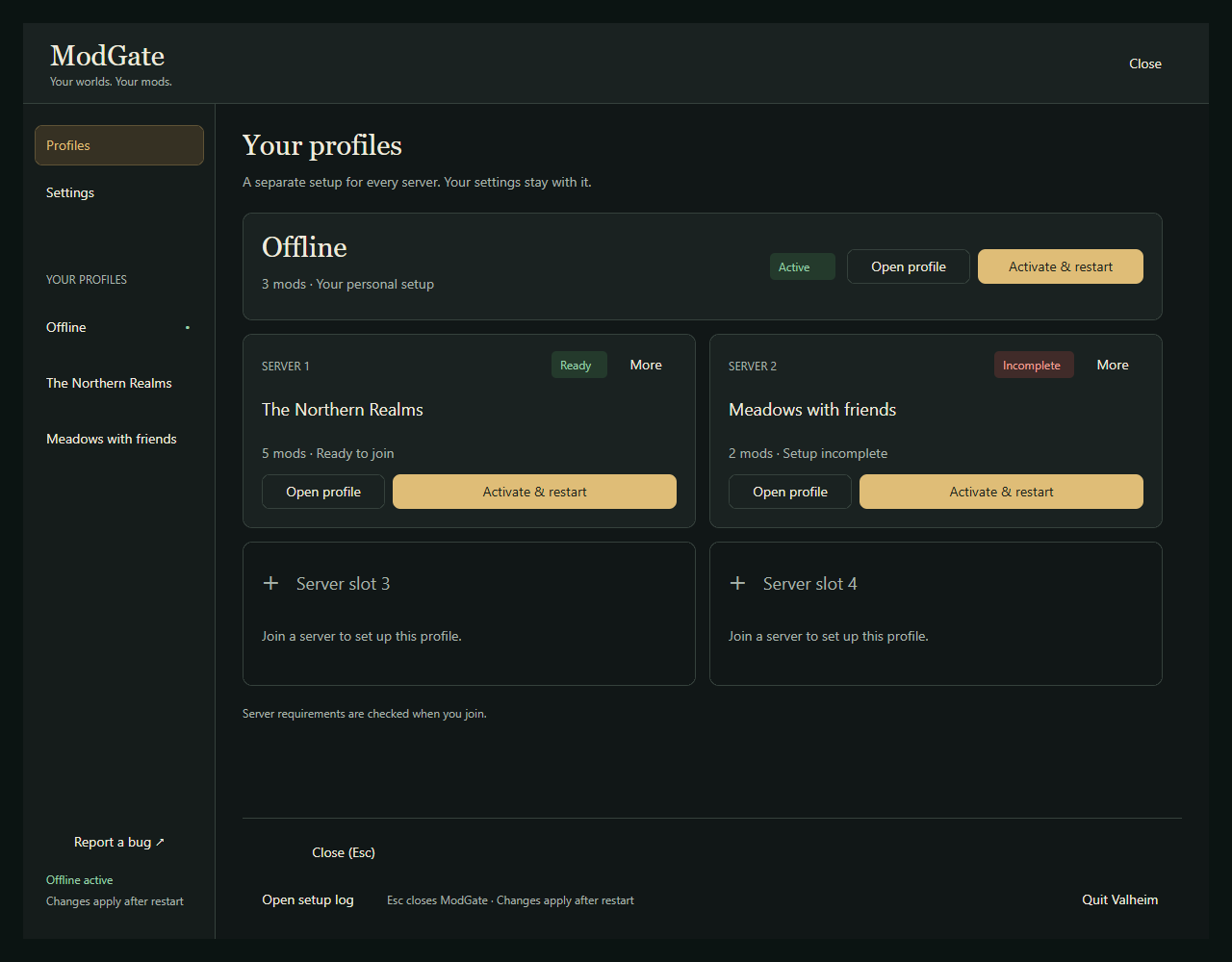
ModGate keeps up to four server profiles and one Offline profile. Each profile holds its mod setup and separate applicable mod configs. You prepare a server profile once, then reuse it when that server’s requirements still match.
Profiles belong to the Valheim installation or external mod-manager profile you launch. Keep using that same installation so ModGate can find your saved setups.
INSTALL ONCE FIRST
BepInEx must already be installed, and both the server and each player need the same ModGate version. See the server-mod download guide for the initial installation and joining steps.
1. Prepare a profile for the server
Connect to a server that uses ModGate. When your mods differ, review its requirements and choose the optional extras you want. Download and review prepares selected supported packages together and reuses matching installed mods.
When creating the profile, choose how to start its applicable configs:
- Copy the active profile to carry your current applicable settings into the new setup.
- Copy Offline to use that profile’s applicable settings as the starting point.
- Start fresh when you want the new setup to begin without copied settings.
Review the prepared profile, install it, restart Valheim, and join the server again. The setup is saved for later use. A server’s future mod-list changes can require you to prepare an updated profile.
2. Activate the setup you want
- Open ModGate from the menu or press Shift + F6 while playing.
- Find the saved profile you want, including Offline.
- Choose Activate & restart on its profile card.
- After Valheim relaunches, join the server or start your Offline session.
Profile activation requires a restart. Mods already loaded into the running game cannot be switched out just by changing the selected profile. On Windows, supported restart flows can relaunch Valheim; other launchers can apply changes on the next launch with a manual restart.
Offline is a saved setup of its own. It can contain mods; its name does not mean a guaranteed unmodified game. ModGate does not join a server automatically after restarting.
3. Keep each server’s settings separate
Open a profile’s Configs tab to edit its supported mod settings. A change for one profile can stay with that setup instead of becoming the settings you use everywhere.
If you prefer the same settings across profiles, use Sync applicable configs to all profiles to copy the current profile’s applicable configs to the others. Use it when you want those destination settings replaced with your current choices.
Reload configs reloads eligible running mods’ current config files. Individual mods decide whether changes can take effect live; some changes still need a restart. Activating another profile still requires restarting.
WHAT STAYS GLOBAL
Profiles separate mods and applicable configs. BepInEx loader settings and patchers remain global to that installation. Profiles do not create separate Valheim installations.
4. Choose your optional mods per server
Use the profile’s Mods tab to review permitted selections. Optional sections start expanded and can be collapsed. Required mods remain subject to the server’s version rules.
Server owners choose whether players may bring additional client-side mods and whether newer installed versions are accepted. Those choices can differ between servers, so a mod accepted in one profile may need changing in another.
Suggested dependencies are choices, but a mod’s own hard dependency can still be necessary for it to load. If a profile fails, check the setup log before continuing with an incomplete selection.
Check or recover a saved setup
Use Check profile to inspect a saved setup and Restore… for available recovery options. Activity and Open setup log provide details when preparation stops.
When you no longer need a server profile, its delete option asks you to confirm and schedules removal for the next launch. An active deleted profile returns to Offline. Keep a copy of settings you want before deleting them. Remove all downloaded mods is the broader cleanup option: it restores the original Offline setup and removes ModGate’s server-profile copies. It does not uninstall BepInEx.
For the complete controls and troubleshooting notes, read the full player guide or visit the support Discord.
RELATED GUIDE →
Get a server’s required mods together.Install the connector once, review the server’s requirements, and let ModGate prepare the supported downloads.